Automated Job Applications: How Submission Automation Works
Product pages describe automated applying as one action: click, and the application is submitted. Underneath it is five distinct steps, each with its own failure mode. Knowing what they are is how you tell a tool that works from one that produces silently broken applications.
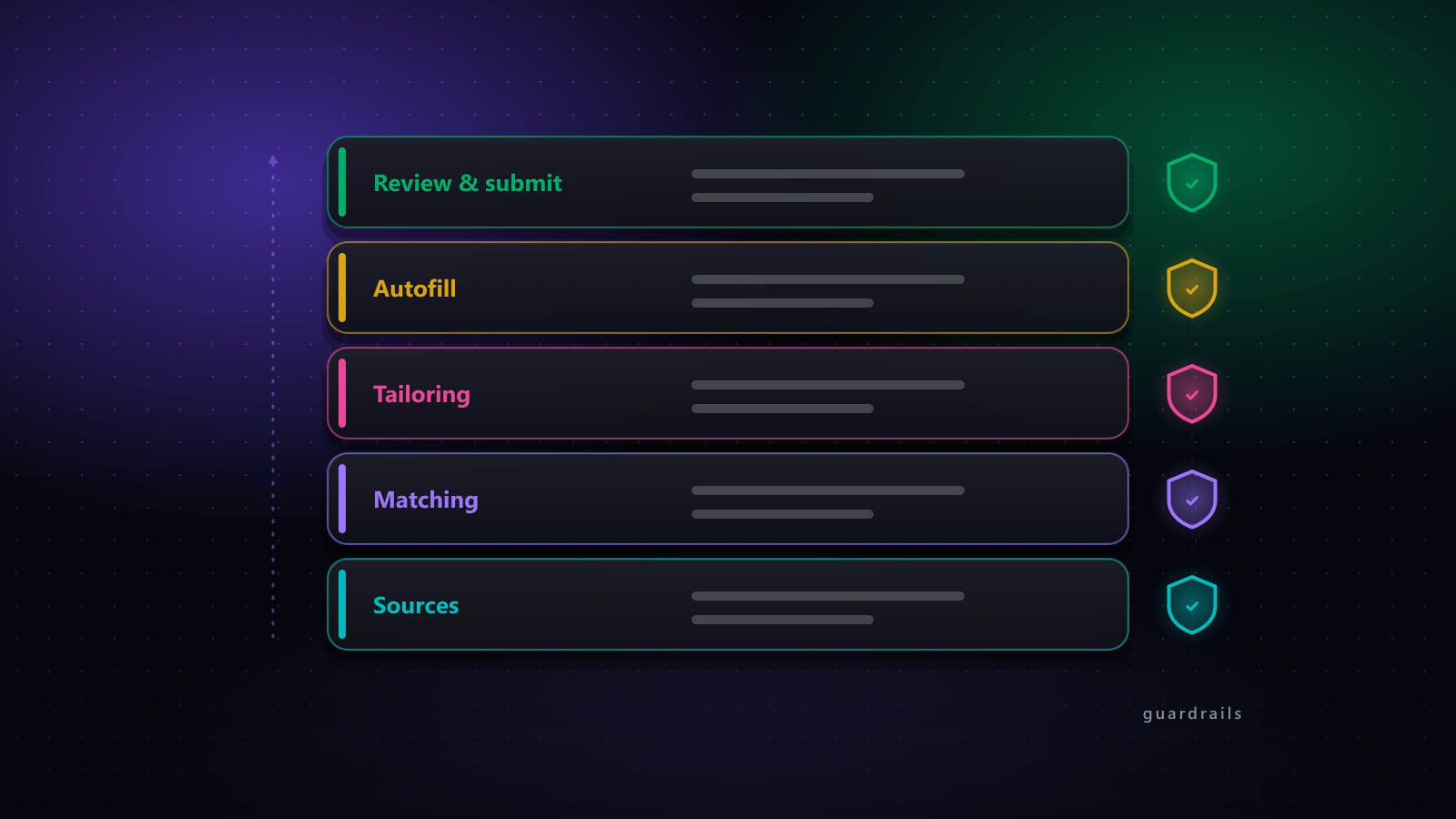
This is the mechanics. For choosing between products see the tool category guide; for building a full stack see automation with guardrails.
Key takeaways
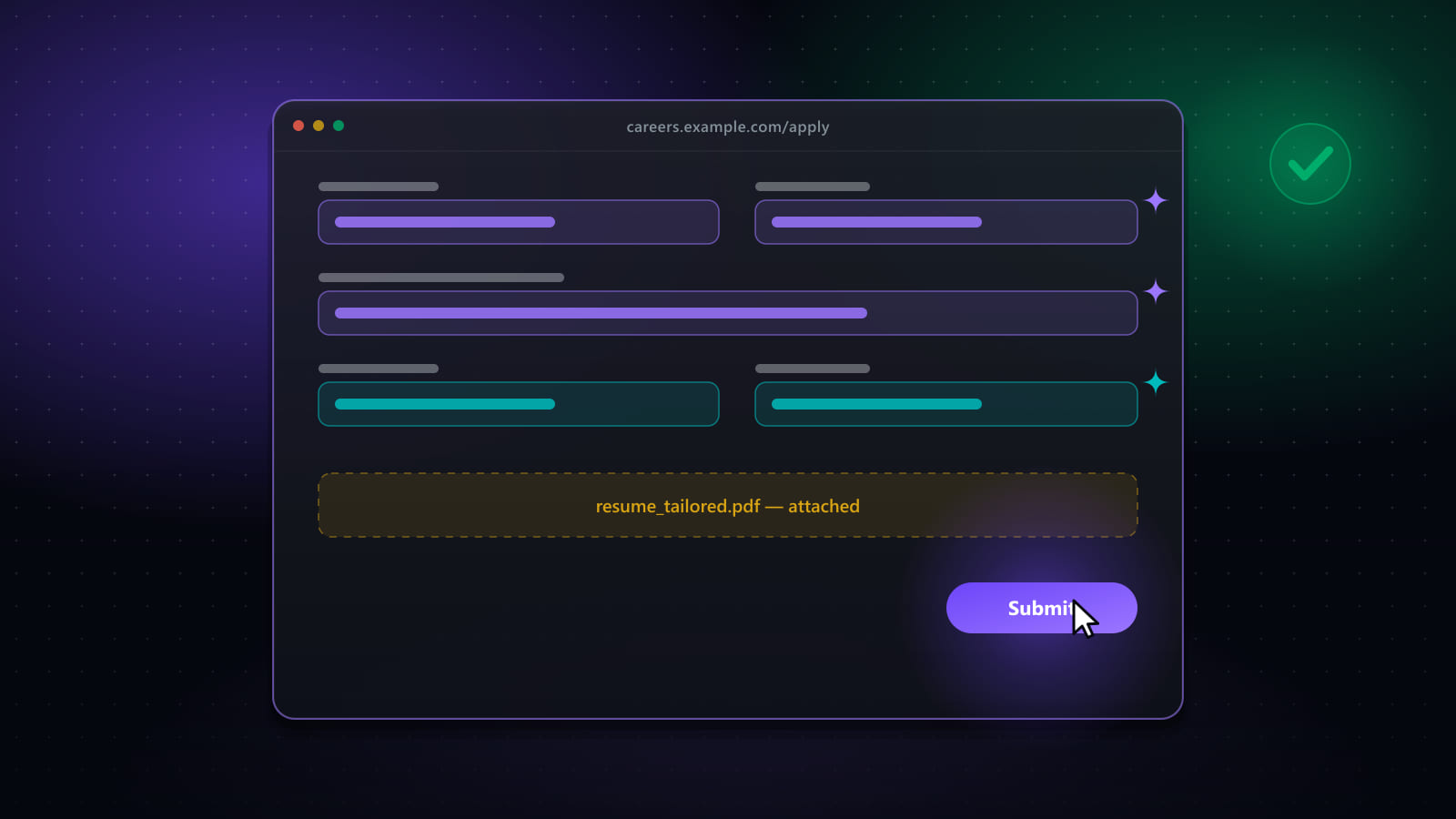
- An automated application is five steps: locate the form, understand each field, match fields to stored answers, attach files, then submit or pause.
- Field understanding comes from the visible label, not the internal field name — which is why ambiguous labels are the most common cause of wrong answers.
- Multi-page wizards are the hardest case and where weaker tools break: they lose track of page state, loop, or submit early.
- What a tool does with an unknown required question — blank, AI-generated, or pause and ask — is the single most revealing design decision it makes.
- Employers do not detect that software filled a form. They detect careless output: generic letters, mismatched answers, contradictions with the CV.
Step 1 — Locate the application form
Harder than it sounds, because “Apply” means several different things. It can open a modal on the same page, navigate to a dedicated form, or hand off to an entirely different applicant tracking system on another domain. Some postings offer both an in-platform apply and an external one, which are not equivalent.
Failure mode: the tool reports success without a form ever opening, because it clicked something that looked like an apply button but was not. Reliable tools verify that a form with recognisable fields is actually present before proceeding, rather than assuming the click worked.
This step is also where a closed or expired posting should be detected. A tool that cannot tell “this role is no longer accepting applications” from “the form did not load” will record failures that are not failures.
Step 2 — Understand what each field is asking
The tool reads the form and works out the meaning of each input. This is where most quality differences between products actually live.
The signal that matters is the visible label — the text a human reads — not the internal field name, which is frequently something like field_0042. Getting from the input element to its true label means checking an explicit label association, then a wrapping label, then ARIA attributes, then walking up the surrounding markup to find the nearest preceding text.
Failure mode: a required-field marker or screen-reader-only text getting picked up as the label, so a field ends up understood as “Required”. That is not merely cosmetic — if the tool then saves an answer under that name, the same wrong answer gets reused on the first required field of every future application.
Step 3 — Match fields to answers
With a label understood, the tool looks for an answer: from your stored profile for standard fields, from previously saved responses for questions you have answered before, or from AI for genuinely new ones.
The matching cannot be exact string comparison, because the same question appears as “Years of experience”, “How many years of relevant experience do you have?” and “Experience (years) *”. It also has to be scoped: an answer that is right for one employer's application may be wrong for another's.
Failure mode worth checking for specifically: a dropdown still showing “Select an option” being treated as already answered. A placeholder is an empty field, and tools that miss this submit applications with unanswered required questions.
There is also one category of field automation should deliberately leave alone: checkboxes that signal intent to the employer, such as marking a role a top choice. That is a statement about your preferences, not a question with a correct answer, and nothing should tick it on your behalf.
Step 4 — Attach the files
The tool identifies which upload slot wants which document — resume, cover letter, portfolio, photo — and attaches accordingly.
Classification is the difficulty. Upload widgets often have no useful label on the input itself; the only clue is the section heading above a generic “Upload” button, which sits elsewhere in the markup entirely.
Failure mode: a cover letter attached to the resume slot, or a tailored CV generated for a different role attached because generation had not finished when the tool reached the upload step. Tools that generate documents during the run need to wait for that generation to complete before advancing — this is a real and easily missed race.
Step 5 — Submit, or stop
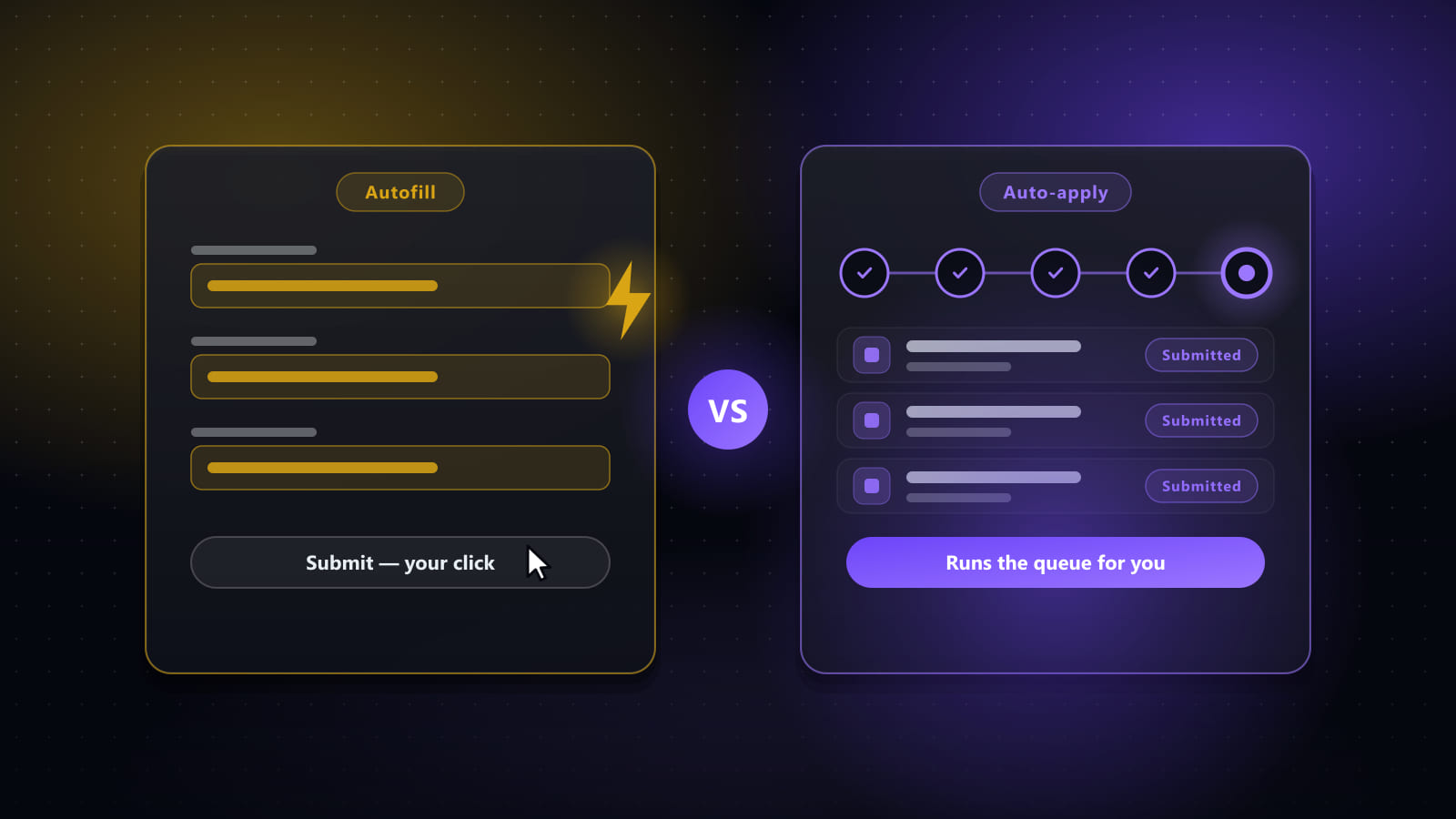
The final decision, and the one that separates autofill from auto-apply.
On a multi-page wizard this step repeats: fill, advance, fill, advance, submit. The tool has to distinguish a Next button from a Submit button, detect when a page has genuinely changed rather than re-rendered, and carry state across pages without re-answering questions already completed.
Failure mode: clicking a Next control that belongs to something else on the page — search-results pagination, an image carousel — and advancing through content that is not the application at all, while believing progress is being made.
It should also be possible to interrupt here. A run you can pause, correct by hand, and resume is substantially safer than one that is all-or-nothing, because the moment you notice something wrong is usually mid-run.
What to test before trusting a tool
Four tests, each targeting one of the failure modes above. Run them on roles you do not mind applying to.
- A multi-page wizard (Workday and Greenhouse are the common ones). Does it complete all pages, or lose track partway?
- A form with an unusual free-text question. Does it leave it blank, invent an answer, or ask you?
- A form with both resume and cover-letter uploads. Does the right file land in the right slot?
- An expired posting. Does it report the role as closed, or as a failed application?
A tool that passes those four is doing the hard parts properly. One that fails them will mostly work on simple forms and quietly produce bad applications on complex ones — which are typically the roles worth applying to.
Frequently asked questions
How does an automated job application actually work?
In five steps. The tool opens the posting and locates the application form; it reads the form's fields and works out what each one is asking, usually from the field label rather than its internal name; it matches each field to a stored answer from your profile or a previously saved response; it attaches files such as a CV or cover letter; and it either submits or pauses for your review. Most failures happen at step two and three — a field whose label is ambiguous, or a question the tool has never seen before.
Can automation handle multi-page application wizards?
Better-built tools can, but it is the hardest part of the problem and where weaker automation quietly breaks. A multi-page wizard requires the tool to track which page it is on, detect when a page has actually changed, carry answers across pages, and recognise the difference between a Next button and a Submit button. Tools that treat each page as an isolated form tend to loop, skip pages, or submit early. If you are evaluating a tool, testing it against a Workday or Greenhouse multi-step application is the fastest way to see its real quality.
What happens when automation hits a question it has not seen?
There are three possible behaviours and the difference matters a great deal. The tool can leave the field blank and submit anyway, which risks an incomplete application; it can generate an answer with AI, which is fast but means something was written in your name that you did not see; or it can pause and ask you, which is slower but safe. A well-designed tool pauses on anything required that it cannot answer confidently, and remembers your answer so the question is only asked once.
Do automated applications get filtered out by employers?
Employers do not generally detect that a form was filled programmatically — a submitted application looks the same either way. What they do detect is the downstream signature of careless mass applying: identical cover letters, answers that do not fit the question asked, applications to many unrelated roles at the same company, or claims that contradict the attached CV. In other words the risk comes from the quality of what is submitted, not from the fact that software typed it.
Should automation submit applications, or stop before submitting?
It depends on how well-defined your search is rather than on a general principle. Stopping before submission keeps a human check on every application, which is the right default while you are still calibrating what you are applying to. Submitting automatically is defensible once the relevance filter is genuinely tight and you have a record you can review afterwards. The configuration that causes problems is automatic submission with a loose filter and no audit trail.
Ready to automate your job search?
Best JobFinder combines job discovery, AI skill matching, resume tailoring, and configurable auto-submit in one platform — with a 7-day free trial.
Try Best JobFinder free →