Auto-Apply Without Spray-and-Pray: The Design Decisions Behind a Run You Can Pause, Edit and Stop
Written by Best JobFinder’s founder.
"Auto-apply" has a bad reputation and some of it is earned. The first generation of tools was a firehose: pick a title, press go, send the same CV to every posting that matched a word. Recruiters noticed. Candidates ended up in employer systems attached to roles they would never have wanted.
The problem was never automating the sending. It was automating the sending without automating the judgment, and without a way to interrupt.
This is how auto-apply is built in Best JobFinder, as a set of design decisions rather than a feature list. Each one exists because of something that went wrong without it.
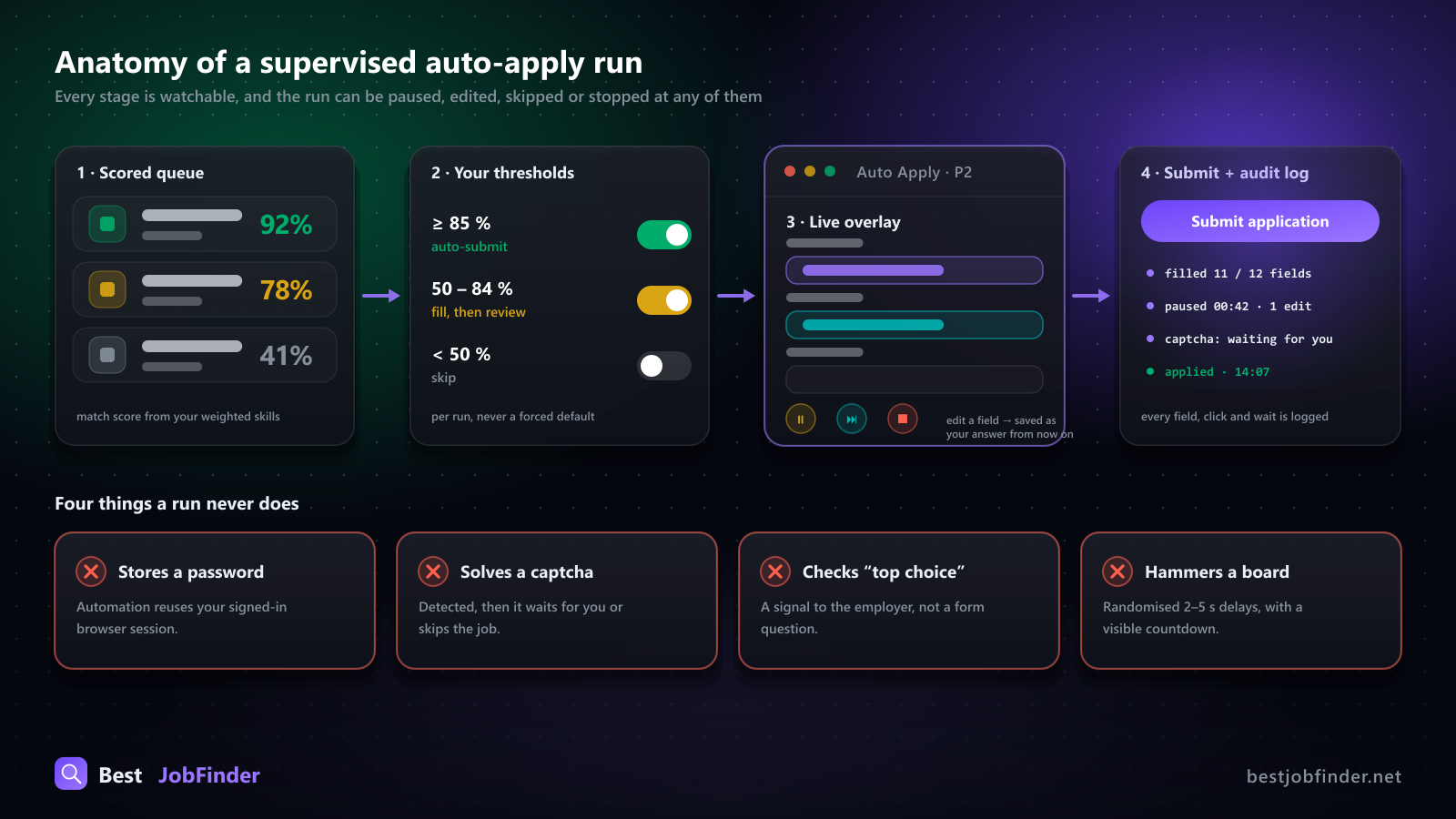
Decision 1: there is no mode where an application is unreviewable
Two ways to run it, and they are not opposites:
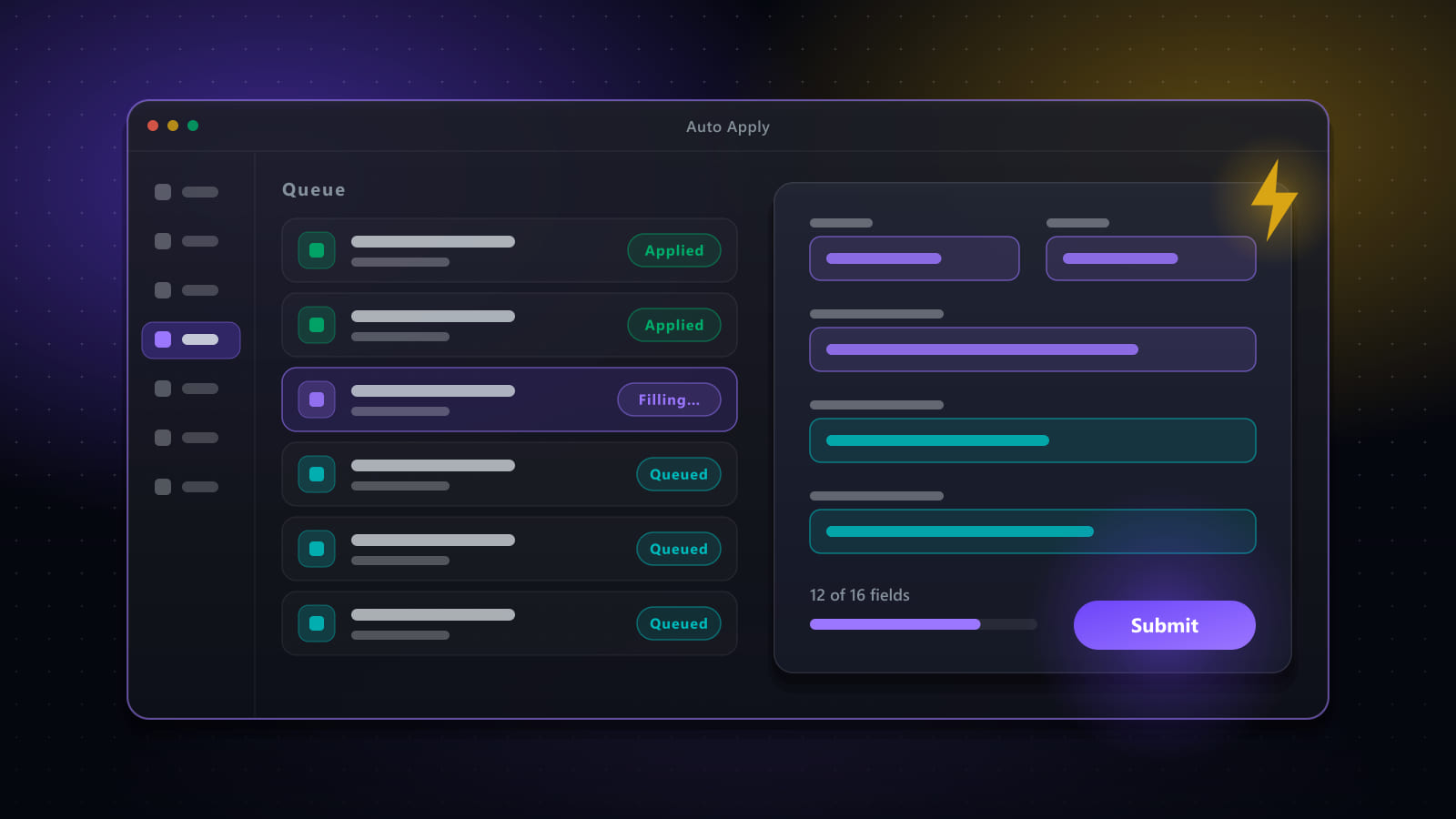
- Copilot mode. Every field gets the best available answer. You review and press Submit yourself.
- Supervised auto-apply. A batch can run unattended through submission. But it stays watchable the whole time: pause at any point, edit any field it filled, skip a job, or stop the run.
The difference is not "AI decides" versus "you decide". It is whether your review happens before each submission, or live while the batch runs. Auto-submit is a per-run setting, off unless you turn it on, never a forced default. An unattended run triggered by a scheduled search, where nobody is watching, never stops to wait for a person: anything it cannot answer, it skips.
Decision 2: thresholds, not a switch
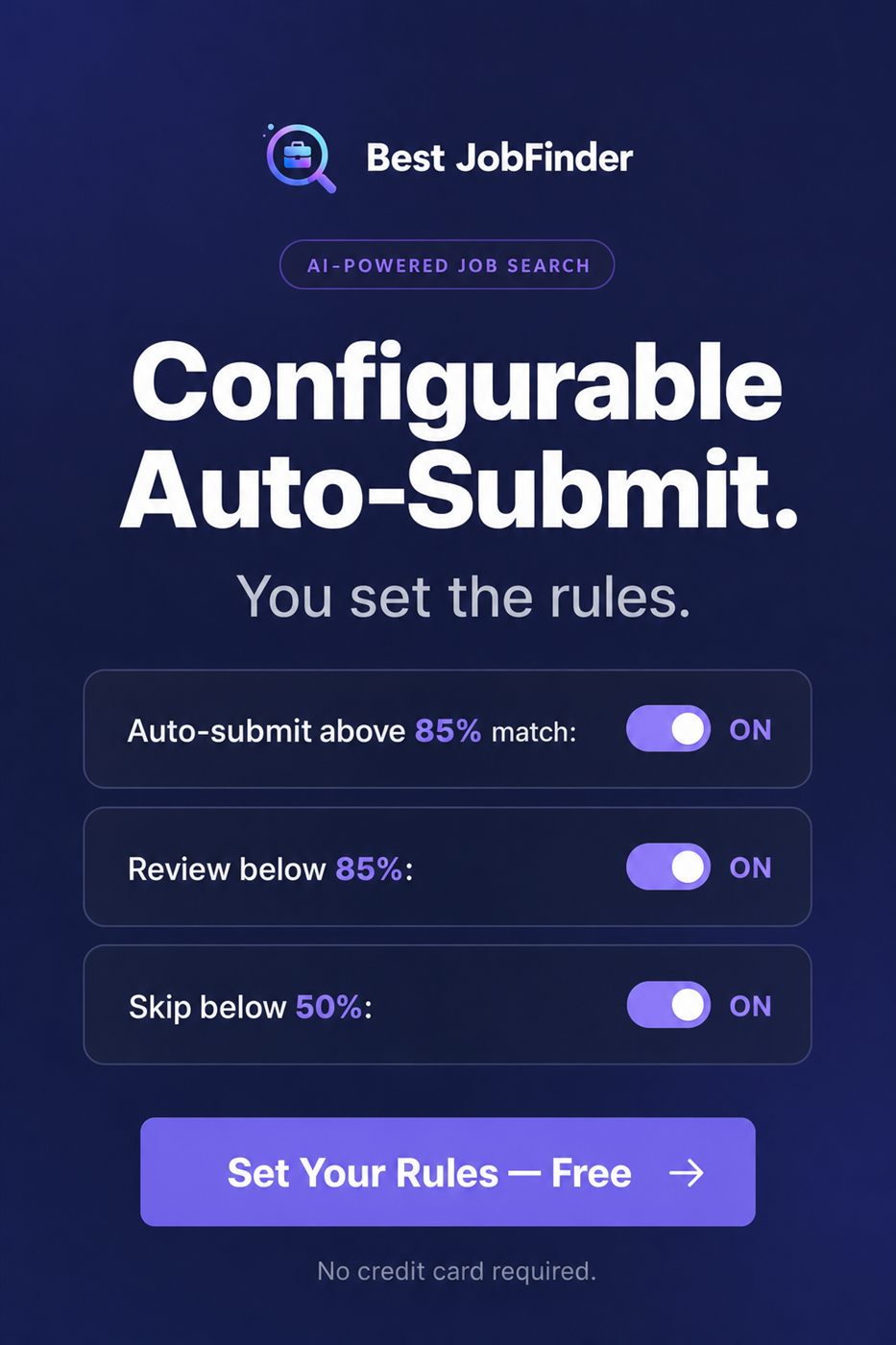
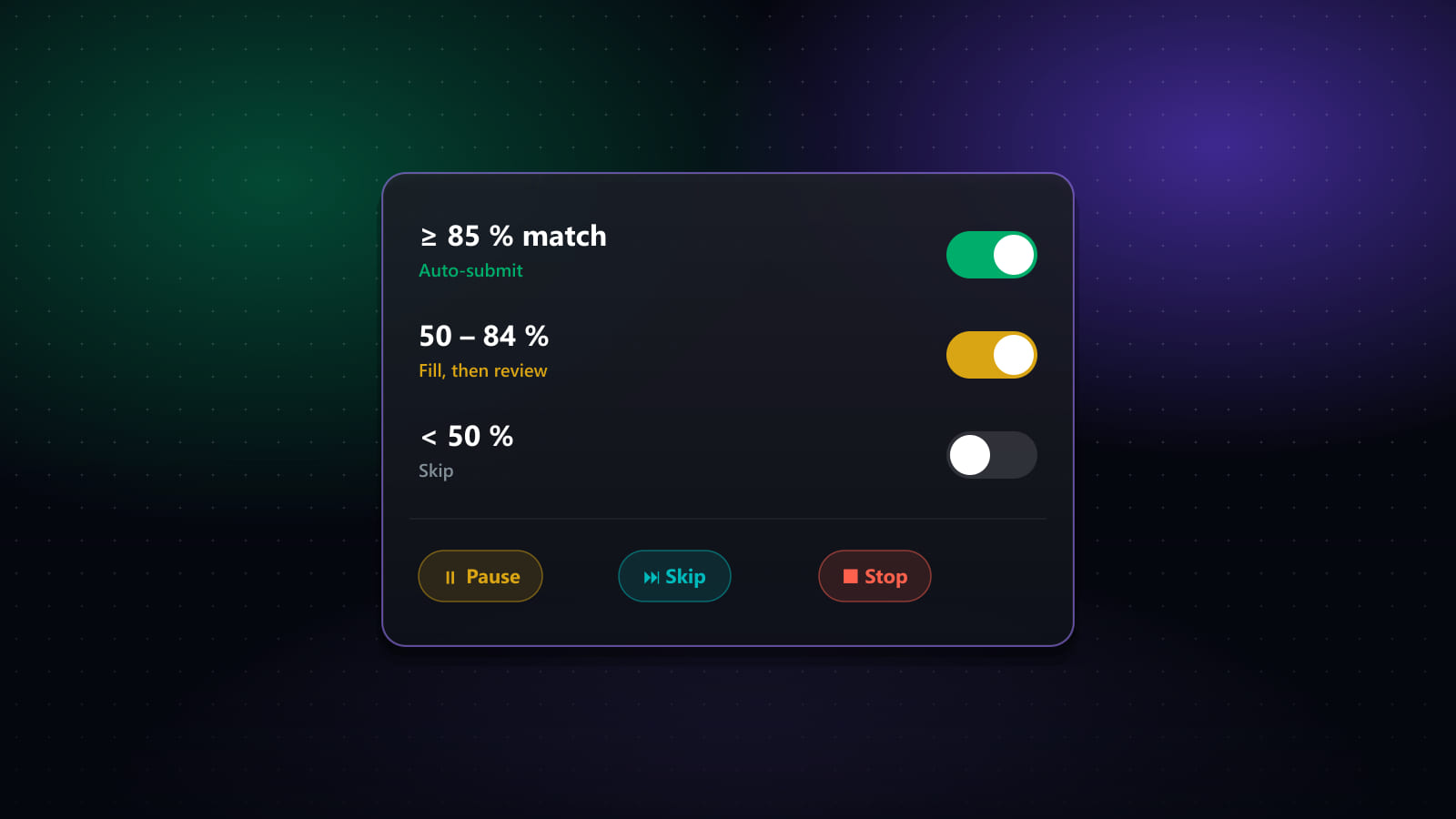
The gate is the match score, a deterministic number from your weighted skills (there is a separate postmortem on keeping it deterministic). Three lines, set per run:
- Above a high threshold, auto-submit. The jobs the scoring is most confident about.
- The middle band, fill and queue for review. A 78 might be missing one skill you would happily explain in a cover letter, or three that make it a poor fit despite the title. That distinction is what a human glance resolves in seconds and what a blanket rule cannot.
- Below a low threshold, skip. Weak matches do not consume review time or get sent by accident.
The advice we give new users is to start narrower than feels necessary and widen the top band after watching a batch of results hold up. The review band is the part that keeps the system honest, so it is the last thing to shrink.
Decision 3: the overlay is the control surface
While a form is being filled, a panel on the page lists every detected field with its status and where the answer came from: your CV, a saved answer, AI, or you. Fields from earlier pages of a wizard are kept, marked P1, P2, so you can see the whole application, not just the current screen. Under the list: today's remaining quota as progress bars, and a bar with Pause, Skip job and Stop.
Pause is immediate. No next field is filled and no Next or Submit is clicked. While paused you can fix values directly in the form. On resume, a field that already has a value is never refilled.
Skip gives up this job and the queue continues. Stop ends the run. The distinction sounds obvious; the implementation detail is that Skip must work from inside engine loops that poll nothing, so it goes to its own mailbox watched for the whole run rather than being one more branch at individual checkpoints.
Decision 4: a correction you make by hand wins, permanently
If you pause and change a value, including one the automation had already filled, that is not a one-off. Every pause snapshots the page's field values and diffs them on resume. A changed field is restated in the panel as yours, and saved as your answer for that question. The answer it replaced is demoted to a variant, not deleted.
Diffing rather than reading values on resume is what makes this safe: a value the job board pre-filled was already present when the pause began, so it can never be mistaken for your edit. And the diff wraps page-change detection, not the reverse. If you clicked the board's own Next or Submit while paused, the tracked selectors point at a different page's controls and anything they report is meaningless. The run notices the page changed and re-reads it instead of resuming into a stale field list.
Decision 5: pace like a careful person, and say so
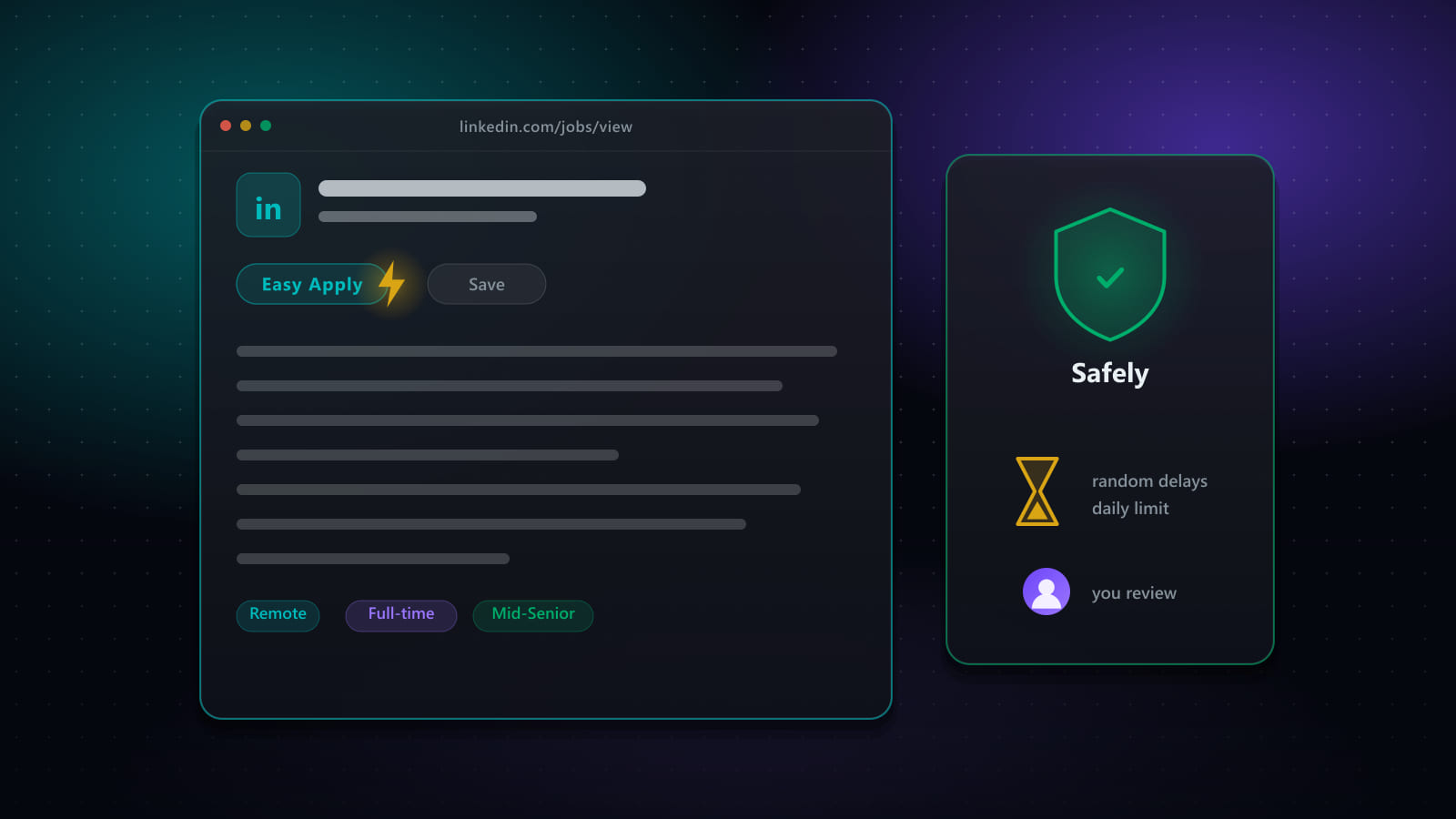
Every navigation waits a randomised 2 to 5 seconds plus jitter, never a fixed timer, never parallel requests to the same board. The wait is shown on the page as an hourglass with a countdown and a Skip, so it never looks like the app hung. Three exceptions, all in the direction of less waiting: a job that is already closed, a job that is already in the database, and the last job in the queue. There is nothing left to space out in those cases, so the run does not pretend.
The pacing is also why no board password is ever stored. The automation drives a real browser window on your machine, in a profile you signed in to by hand, and detects when that session is gone. If a board rate-limits an account, it should be because the behaviour looked automated, and the entire design is about making sure it does not.
Decision 6: a CAPTCHA pauses or skips. It is never solved.
Every page of a run is checked for Cloudflare interstitials and Turnstile, reCAPTCHA, hCaptcha, DataDome, PerimeterX, Imperva, Arkose, GeeTest, LinkedIn's security checkpoint, and the plain "access denied" block page. One detector, shared by every engine, with tests per provider.
You choose the policy per run. Wait holds the job, brings the window forward, re-checks every two seconds, and resumes by itself the moment the page is clean, for up to thirty minutes. Skip gives the job up at once with the reason written to its log and moves on. Solving a challenge is a site's access control being circumvented, and we do not do it, under any policy.
Related, and easy to get wrong: LinkedIn has a daily application limit. When the dialog appears, the current task goes back to pending (nothing was wrong with it), every remaining LinkedIn task in the queue is left exactly as it was for tomorrow, and the run ends. The first version paused and waited for a human on a dialog that cannot clear until the next day, which burned the rest of the batch.
Decision 7: unanswered questions have one switch
If neither your saved answers nor the AI could answer a question on the page, one setting decides what happens. On, the run pauses for you to answer it, and what you type is saved as your answer. Off, the run shows "skipping this job in 10 s" with a countdown; pressing Pause during the countdown keeps the job, otherwise it is handed back as manual and the queue moves on.
That took a few iterations to get to one switch. An earlier version had a second, legacy flag that could park runs on "Paused, fix any values then resume" when the user had asked for no pauses at all.
Decision 8: everything is logged, and everything is torn down
Every field, click, wait, pause, edit, captcha and skip is written to the task's log, which is kept, not just shown live. When a run ends, whatever it injected into the page is removed and stopped: the overlay, the file-picker interception, the observers and timers. An early version left all of that running in the page after the run, for the life of the tab. Always-on features that exist independently of a run, like the skill panel, are deliberately not touched.
The four things a run never does
- Stores a password. It reuses your signed-in browser session, and that is all.
- Solves a CAPTCHA. It detects one, then waits for you or skips the job.
- Checks "Mark job as top choice". That box is a signal to the employer, not a question. LinkedIn sometimes renders it pre-checked; on a new page the run unchecks it, and on a page you have paused on it leaves your choice alone.
- Hammers a board. Randomised delays, no parallel requests, and a visible countdown.
Where this leaves you
A sensible setup, from watching a lot of runs: high matches on boards you know, auto-submit and spot-check later. Medium matches or unfamiliar portals, fill and review. The handful of companies you actually care about, by hand, with your own cover letter and a referral if you can get one. Volume where volume makes sense; your attention where it changes the outcome.
The run is at bestjobfinder.net, desktop app and browser extension, seven-day trial. Start with auto-submit off, watch one batch with the overlay open, and turn it on for the top band when you believe the number.
Ready to automate your job search?
Best JobFinder combines job discovery, AI skill matching, resume tailoring, and configurable auto-submit in one platform — with a 7-day free trial.
Try Best JobFinder free →